
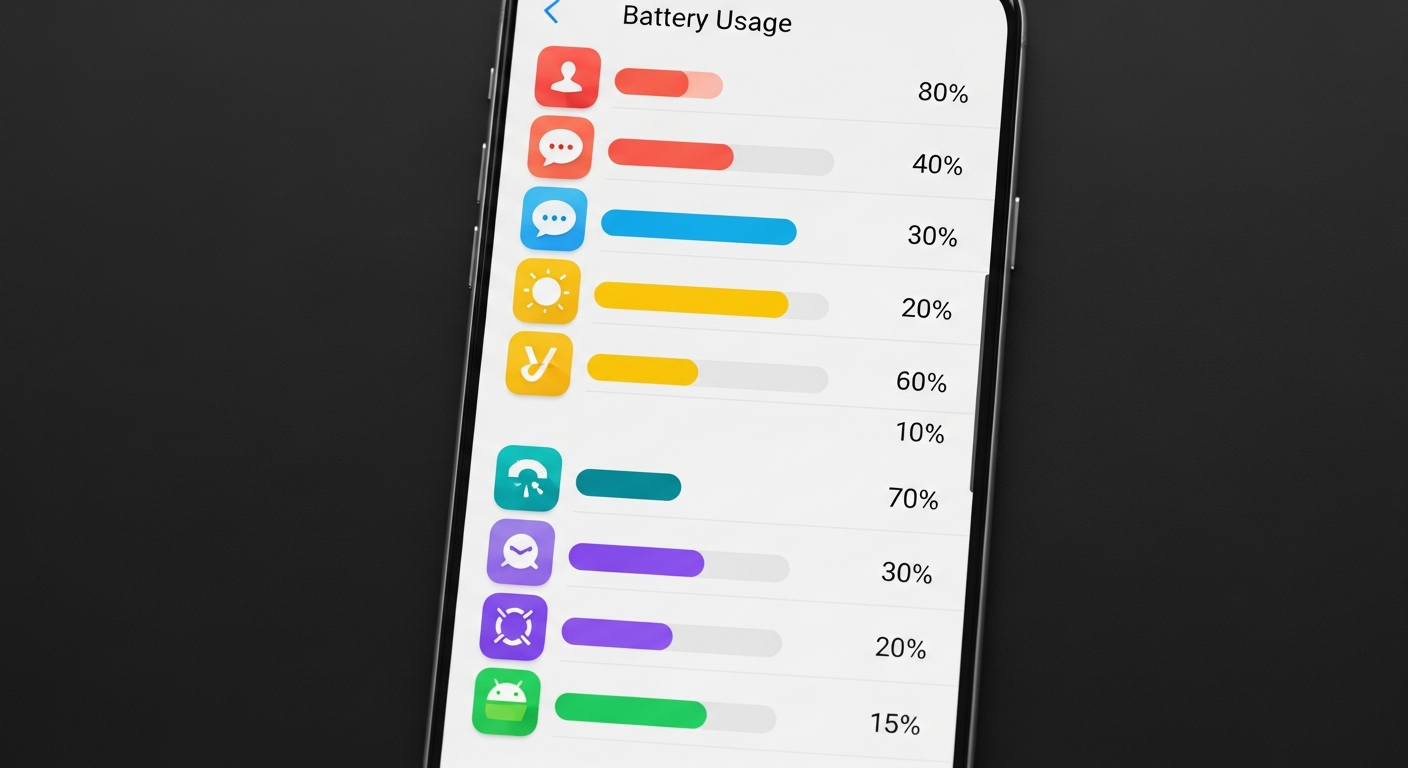
Background apps are the single biggest drain on Android battery life. Every app that keeps running after you close it pulls CPU cycles, pings network connections, and burns through charge you never consented to spend. The fix takes about two minutes, and this guide walks you through every method, from the quick swipe to the nuclear option inside Developer Options.
Quick answer: Open Settings, go to Battery, tap the three-dot menu and select Battery Usage, then restrict any app shown draining power. For deeper control, open Settings > Developer Options > Background Process Limit and cap it to 3 or 4 processes. This works on Android 10 through Android 15.
Why Android Lets Apps Run in the Background at All
Android’s background execution model exists for legitimate reasons. Your email client fetches new messages. Your navigation app keeps the route fresh when the screen dims. Spotify keeps music playing when you switch to another app. The problem is that developers push this permission aggressively, and dozens of apps stay alive even when you have no reason to need them.
Google introduced Doze Mode in Android 6 and App Standby in Android 8 to reduce this abuse automatically, but both modes have exceptions, and plenty of apps exploit them. The settings below give you manual control over what Doze and Standby don’t catch.
Force Stop Individual Apps
This is the fastest way to kill one specific app right now. The effect lasts until you or Android restarts the app, so it’s better as a spot fix than a permanent solution.
- Open Settings on your Android phone, then tap Apps (some phones label this “Application Manager” or “Manage Apps”).
- Select the app you want to stop.
- Tap Force Stop.
- Confirm in the prompt that appears.
The app is now completely suspended. It will not start again until you open it manually or another app triggers it. If it restarts on its own within minutes, that usually means a different app is waking it. Use the Battery Usage method below to trace that trigger.
Restrict Background Activity Per App
Background restriction is a permanent setting that tells Android to prevent an app from running at all unless you have it open. Unlike Force Stop, this sticks across reboots.
- Open Settings and go to Apps.
- Tap the app you want to restrict.
- Tap Battery.
- Select Restricted (the option label varies slightly by manufacturer, but every Android 9 and later device has it).
Restricted apps can still appear in notifications if you allow notification permission, but they cannot run background tasks or request wake locks. Social media apps, news aggregators, and shopping apps are the best candidates for this setting. Most people will never notice any functional difference.
Check Battery Usage to Find the Real Culprits
Before restricting apps at random, check which ones are actually costing you battery. Android tracks this precisely.
- Open Settings, then tap Battery.
- Tap Battery Usage (on Samsung, look for “Battery and Device Care” first).
- Review the list. Apps should show low single-digit percentages. Anything above 5% that you did not actively use recently is a problem.
- Tap any suspicious app to see its breakdown, then tap Battery Usage inside that screen to toggle between optimized, unrestricted, and restricted modes.
Google’s own data shows that the average Android user has 35 apps installed that run at least one background process daily, with the median user having 8 apps that are actively working while the screen is off. Targeting those 8 first produces the biggest battery gain.
Developer Options: Set a Hard Background Process Limit
This is the most powerful setting available, and it’s hidden inside Developer Options because it can break poorly coded apps. If you’re comfortable accepting that trade-off, it gives you a hard ceiling on how many processes Android keeps alive simultaneously.
- Open Settings and go to About Phone.
- Tap Build Number seven times. A message will confirm that Developer Options are enabled.
- Go back to the main Settings screen and open Developer Options (usually near the bottom). Scroll down to find Background Process Limit.
- Set it to 3 processes or 4 processes. Setting it lower than 3 can cause visible lag when switching apps.
At 3 processes, Android will kill the oldest background app automatically whenever a new one needs resources. Your most recently used apps stay cached; apps you haven’t touched in a while are cleared. For most users, this single setting extends battery life by 15 to 25 percent in a full charge cycle.
Disable Auto-Launch for Third-Party Apps (Samsung and Xiaomi)
Samsung’s One UI and Xiaomi’s MIUI both include a proprietary auto-launch manager that Android stock does not have. If you use either of these phones, this setting is worth checking before anything else, because it controls which apps can start themselves without you opening them.
On Samsung (One UI):
- Open Settings, then Battery and Device Care.
- Tap Battery, then Background Usage Limits.
- Toggle on Put Unused Apps to Sleep and Auto-Disable Unused Apps.
- Add specific apps to the “Sleeping Apps” list manually if needed.
On Xiaomi (MIUI):
- Open Settings, then Apps, then Manage Apps.
- Select the app, scroll to Autostart, and toggle it off.
- Repeat for every app that does not need to launch itself at boot.
The Task Killer Myth: Why Third-Party Apps Make Things Worse
Third-party task killer apps are counterproductive. Android’s memory manager is already designed to reclaim RAM from idle apps automatically, and it does this better than any third-party app can. When a task killer force-stops an app, Android often has to reload it from scratch the next time you open it, which uses more CPU and battery than simply leaving the cached app in memory. Google has explicitly recommended against task killers since Android 4.0.
The settings built into Android, especially battery restriction and the background process limit in Developer Options, are the correct tools for this problem. Google documents the recommended approach in the Android background optimization guide.
How to Turn Off Specific Background Permissions
Some apps drain battery through specific system permissions rather than raw background processes. Two permissions worth auditing:
- Location (Always On): Settings > Location > App Permissions. Change any “Always” permission to “While Using the App” unless you have a specific reason to leave it on.
- Background Data: Settings > Apps > [App Name] > Data Usage. Toggle off “Background Data” to stop the app from syncing when you’re not using it.
For a related problem, the guide on how to force-stop a frozen Android phone covers power management settings you can use alongside these steps. For AirPods users running background audio connections, the AirPods pairing guide for Android explains how Bluetooth background wake affects battery and how to tighten it. You’ll also find additional Android tips on the droidhere.com homepage.
FAQ: Background Apps on Android
Does closing apps in the recent apps screen stop them from running in the background?
Not reliably. Swiping an app away from recents removes it from the recency list, but on many Android skins, apps with background permissions continue running. Use battery restriction in Settings for a genuine stop.
Will restricting background apps break anything?
Restricted apps won’t deliver notifications until you open them, and they won’t sync data in the background. For most social media and news apps, this is fine. For apps like a calendar or alarm clock, leave background access unrestricted.
How do I know if an app is running in the background right now?
Enable Developer Options, then go to Developer Options and tap “Running Services.” This shows every active process with real-time memory and CPU usage. It’s the most accurate view Android provides.
Does Android 15 handle background apps differently?
Android 15 tightened restrictions on background app launches and added stricter rules about apps waking each other up through broadcast intents. If you updated recently, many apps that previously self-restarted may already be blocked. The Battery Usage screen in Settings will confirm the current state.


